New Social Media Features on Your Member Bridge Profile
Use these new features to expand your professional networking opportunities on Member Bridge! Quickly fill out your Member Bridge profile by importing information from your LinkedIn profile. Then, find out which of your LinkedIn connections are on Member Bridge and add them to your contacts with the click of a button. You can now also link to your Facebook profile, blog, and other sites, as well as display your tweets from Twitter directly on your Member Bridge profile.
1. Import Profile Information from LinkedIn
This feature allows you to copy certain information from your LinkedIn profile onto your Member Bridge profile.
Log on to Member Bridge and go to My Profile:
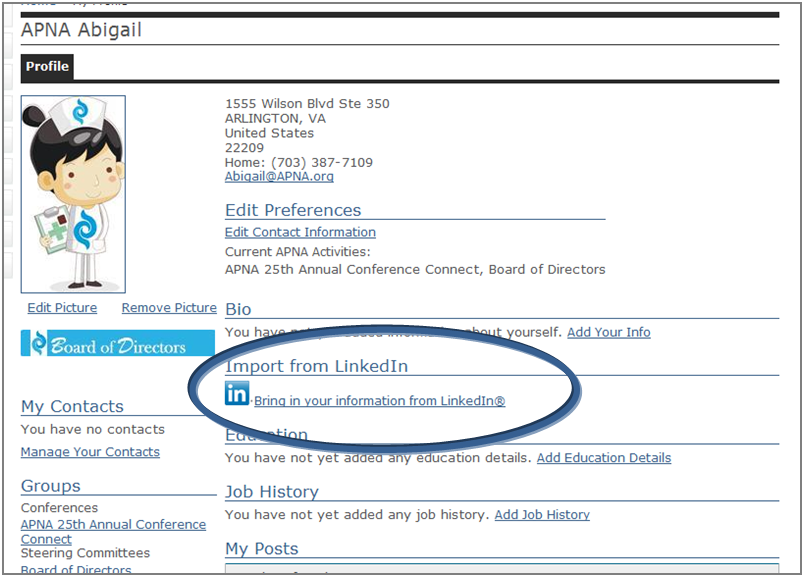
Find the Import from LinkedIn section and click on the Bring in your information from LinkedIn link:
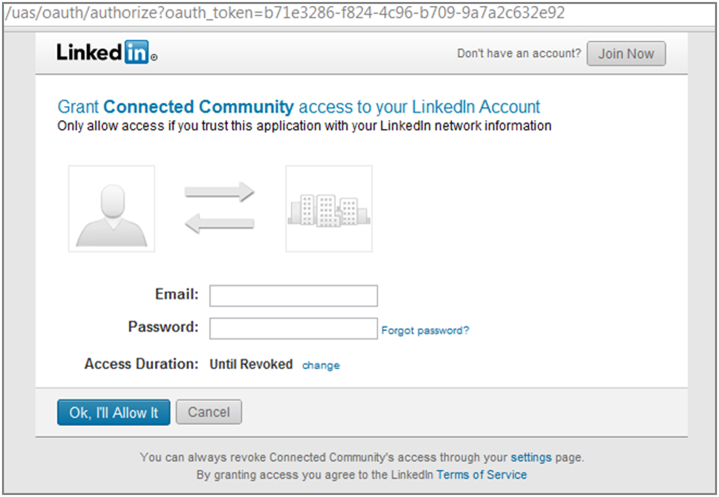
You will be prompted to enter your LinkedIn log-in information and authorize access to your account.
You will then be taken to a grid that shows your picture, bio, job history, and education information from both LinkedIn and Member Bridge. From here you will be able to select which information you would like copied over from your LinkedIn profile onto your Member Bridge profile. If the data for a field already matches exactly, it will be indicated by an equal sign.
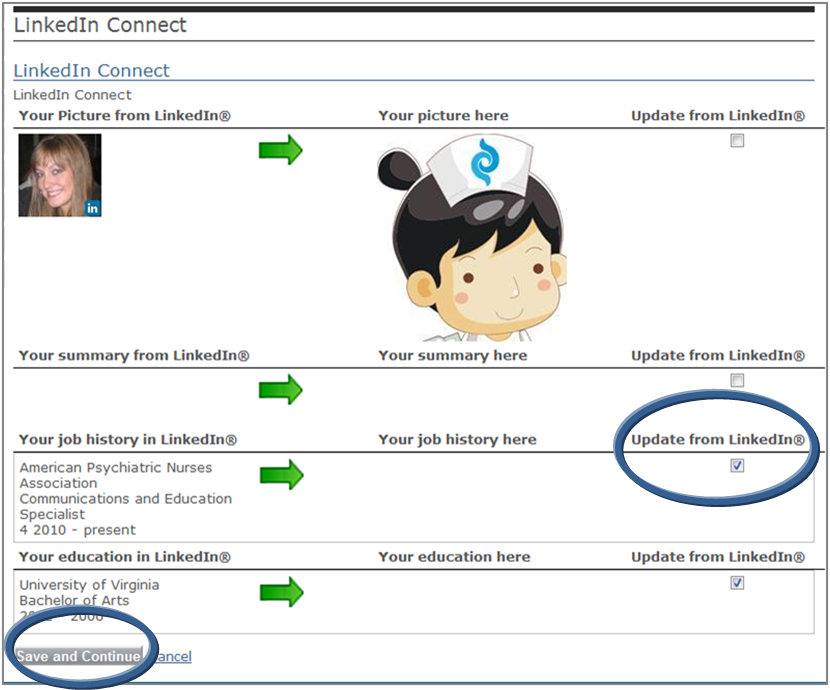
Check the box next to each field that you would like to be updated with your information on LinkedIn, then hit the Save and Continue button.*
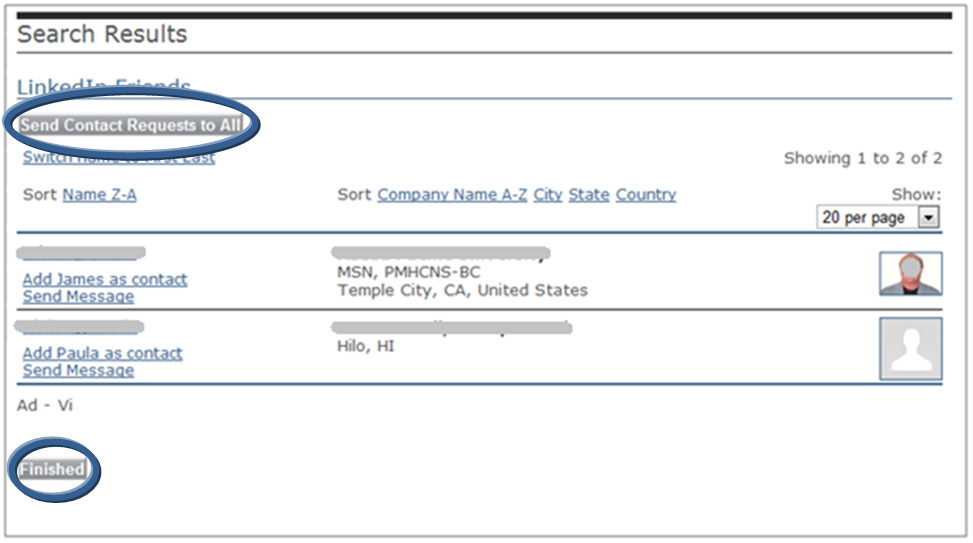
A page that lists all of your LinkedIn contacts who are also APNA Members and on Member Bridge will appear. You can request to add them all as contacts with the click of a button, add members individually, or send them messages:
2. Link to Your Other Social Media Sites
You can now link to your profiles on various other social media sites, such as LinkedIn and Facebook, on your Member Bridge Profile.
On the My Profile page, scroll down to the Social Media Sites section:
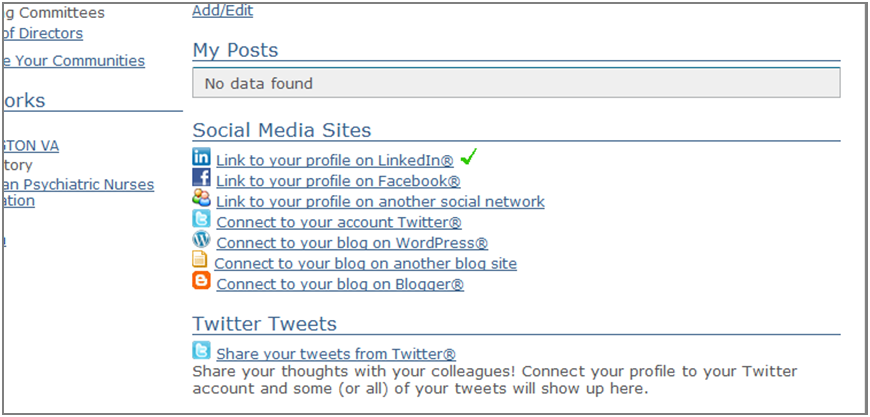
Click on each item that you would like to link to on your profile and enter the full URL of your profile (such as http://www.linkedin.com/in/yourname).
3. Twitter Tweets
Post your recent Twitter tweets directly to your Member Bridge profile with this new functionality.
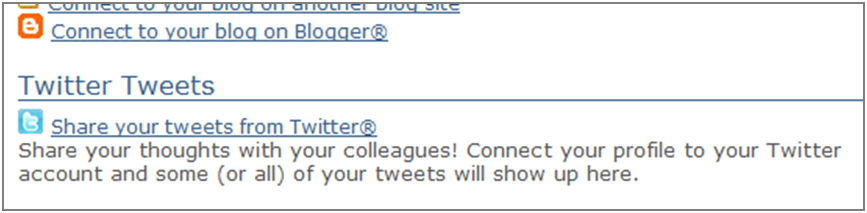
On the My Profile page, scroll down to the Twitter Tweets section and click on the Share your tweets from Twitter link:
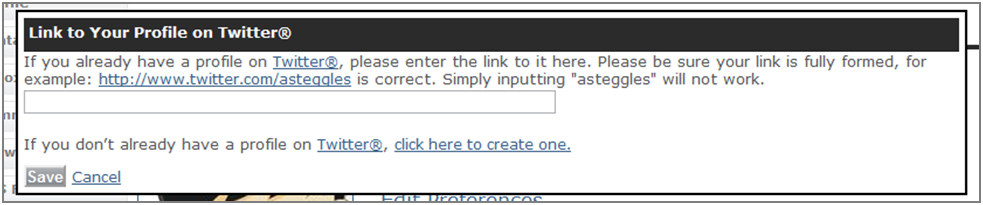
Enter the full URL of your twitter profile (such as http://www.twitter.com/yourhandle) in the pop up window and then hit the Save button:
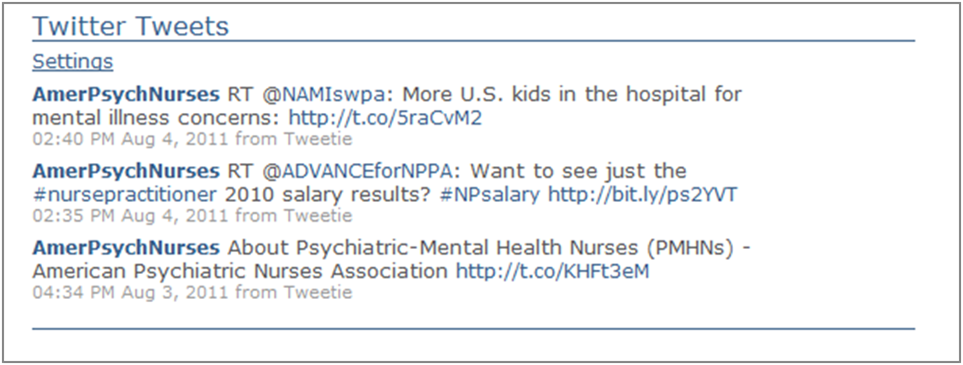
Your tweets will now display on your profile (there may be a slight initial delay) and will look something like this:
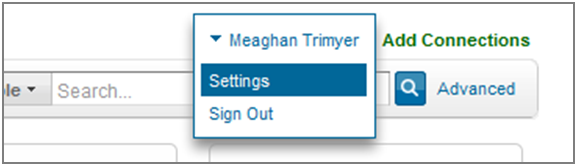
* You can always revoke Member Bridge’s connection with your LinkedIn profile by going to the settings page on your LinkedIn account:
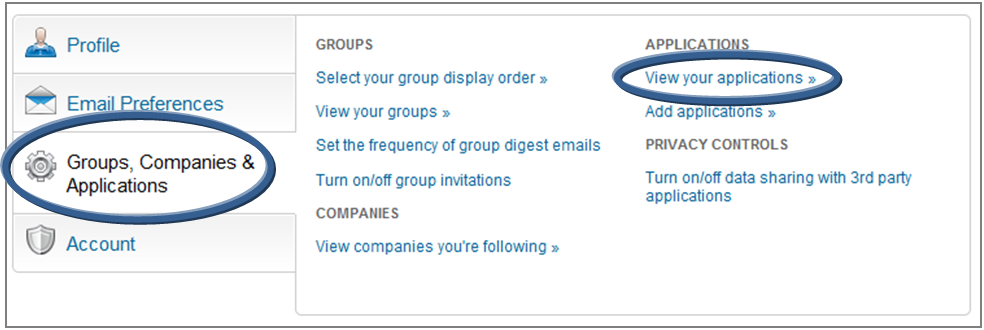
Select Groups and Applications and then View your applications:
In the External Websites section, check the box next to Connected Community and then hit the Remove button:
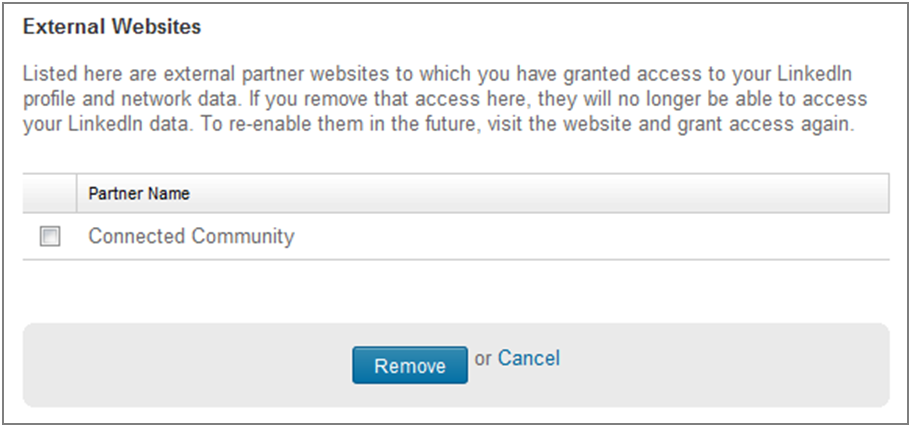
The connection between your LinkedIn profile and Member Bridge profile will now be broken.
If you have any questions about these new features, contact Meaghan Trimyer at mtrimyer@apna.org.